Deep Dive in Git & GitHub for DevOps Engineers.
What is Git and Why is it Important? 📜
Git is a distributed version control system (VCS) designed to track changes in code over time. Think of it as a time machine for your codebase. Git enables developers to collaborate seamlessly, maintain a history of changes, experiment with new features, and revert to previous versions when needed. It ensures that team members can work concurrently without conflicts and provides a safety net for code integrity. 💼
What is difference Between Main Branch and Master Branch?
The terms “main branch” and “master branch” refer to the default branch in a Git repository. The difference between these terms lies mainly in their naming conventions and historical context:
Master Branch
Historically, “master” was the default branch name used in Git repositories for many years. It originated from the original version control system called BitKeeper.
The “master” branch typically represents the main development branch, where the latest changes and features are integrated before being released or merged into other branches.
However, the use of “master” has been recognized as carrying connotations of slavery and oppression, leading to a movement to replace it with more inclusive terminology.
Main Branch
In response to the concerns raised about the term “master”, many Git hosting platforms and communities have moved towards adopting more inclusive naming conventions.
“main” is a commonly used alternative to “master” as the default branch name. It aims to promote diversity and inclusion within the software development community.
The “main” branch serves the same purpose as the “master” branch, representing the primary branch for development, integration, and the latest changes.
Git vs. GitHub: 🤝
S.No. | Git | GitHub |
1 | Git is a software. | GitHub is a service. |
2 | Git is a command-line tool | GitHub is a graphical user interface |
3 | Git is installed locally on the system | GitHub is hosted on the web |
4 | Git is maintained by Linux. | GitHub is maintained by Microsoft. |
5 | Git is focused on version control and code sharing. | GitHub is focused on centralized source code hosting. |
6 | Git is open-source licensed. | GitHub includes a free-tier and pay-for-use tier. |
Creating a New Repository on GitHub: 🏗️
Let's get started by creating a new repository on GitHub, where we'll keep and organize our code. Follow these simple steps:
Open your web browser and visit github.com.
Log in to your GitHub account.
On the GitHub homepage, click the "+" button at the top-right corner, then select "New repository" from the menu.

Give your repository a meaningful name.
You can also add a description to give more details about your repository.
Choose whether you want the repository to be public or private, depending on your needs
Local Repository vs. Remote Repository: 🏡 ↔️ ☁️
The distinction between local and remote repositories is pivotal in Git's magic:
Local Repository: This is your development playground, residing on your computer. It's where you write, test, and tweak code.
Remote Repository: Your code's cloud-based twin. It lives on a platform like GitHub, serving as a shared hub for collaboration, backup, and easy access.
📋 Tasks 1:
• Set your username and email address
Setting your username and email address in Git is essential for identifying you as the author of commits and contributions in your projects. This information helps Git keep track of who made changes to the code. 👤📧
To set your username and email address, you need to use the following Git commands in the command line or Git client:
git config --global user.name "Your Name"
git config --global user.email "your@email.com"
Replace "Your Name" with your actual name and "your@email.com" with your email address. The --global flag ensures that these settings are applied globally to all your Git repositories on the computer. 🌐🔧
By providing your username and email address, Git can accurately attribute your contributions, making it easier for other developers to recognize your work in collaborative projects. 🚀🤝
Connect your local repository to the repository on GitHub.
Go to the GitHub website and sign in to your account.
Use the instructions provided earlier to make a new repository called "Devops" on GitHub.
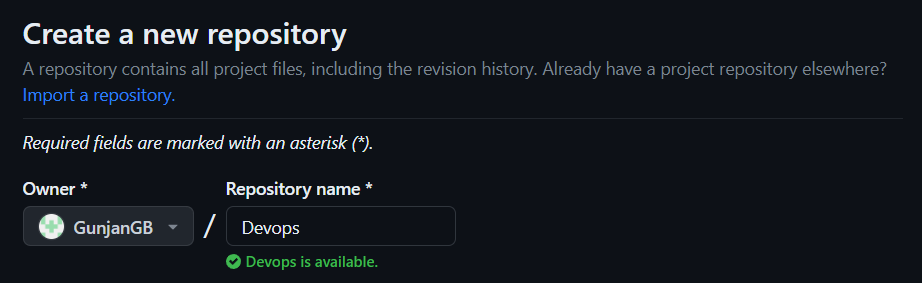
• Connect your local repository to the repository on GitHub.

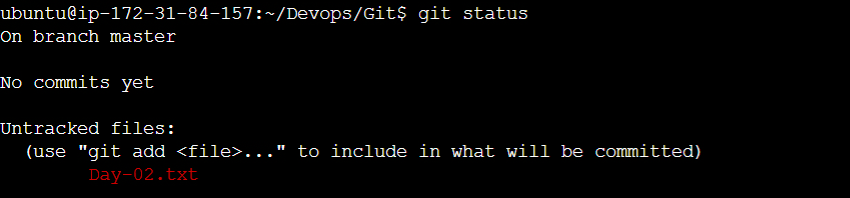
• Create a new file in Devops/Git/Day-02.txt & add some content to it
In your local repository, make a new file called "Day-02.txt" inside the "DevOps/Git" folder. 📝
Include some content in the file, like this: 📄

•Push your local commits to the repository on GitHub
Push your local commits to the repository on GitHub
To commit your local changes to the remote repository on GitHub, you must first deploy and commit them.
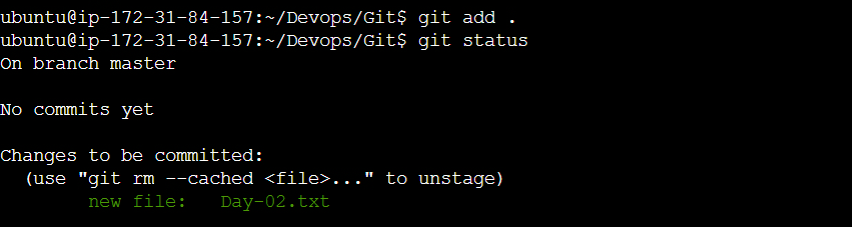
Staging is where you select which files or changes you want to include in a commit. A commit is a snapshot of your project at a specific point in time.
Run this command to deploy all the files or changes to your local repository:
This will add all the files or changes to the staging area.
To commit them with a message describing what you did, run this command:
This will create a new commit with the message you specified.
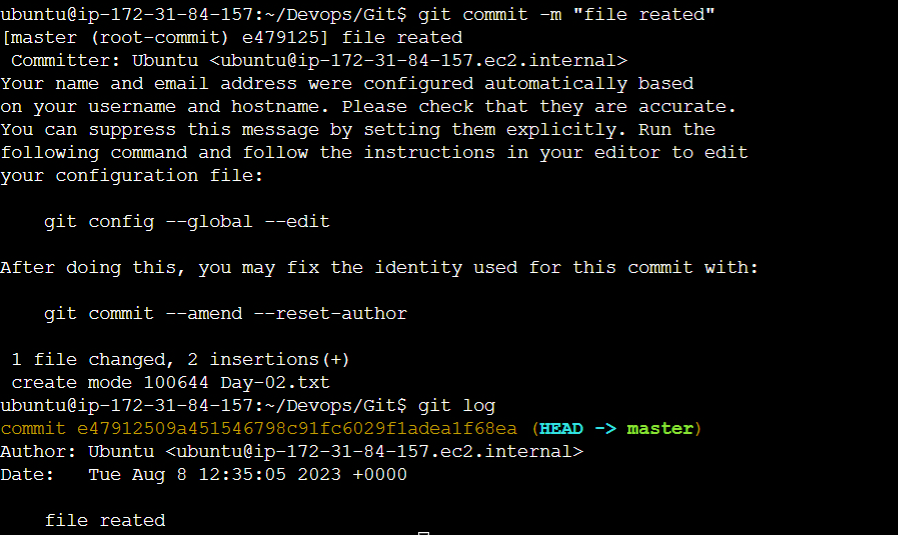
🚀 Finally, use the command "git push" to upload the committed changes back to the repository on GitHub. For example: "git push origin main" or "git push origin master," depending on the branch name.

This will upload your new commit and branch to the remote repository on GitHub
You can verify that your changes are reflected on GitHub by visiting your repository page and clicking on Commits or Code.
Conclusion:
In the symphony of modern software development, Git and GitHub compose the melody of collaborative coding. Git empowers developers with version control sorcery, while GitHub provides the harmonious cloud ensemble. By understanding the nuances of branches, repositories, and their interactions, you're equipped to navigate this dynamic duo with finesse. Happy coding! 👩💻👨💻


