Basic Linux Shell Scripting for DevOps Engineers.
-> What is Shell Scripting for DevOps? 🐚🤖
Shell Scripting for DevOps is like having a magic wand 🪄 in your hands that allows you to automate tasks and streamline processes in the world of DevOps. 🐚🤖
Imagine you're a DevOps engineer responsible for deploying and managing a complex web application. With shell scripting, you can write scripts using shell languages (such as Bash) to automate repetitive tasks and configurations. It's like having a personal assistant that can execute commands on your behalf. ✨💻
For example, let's say you have to deploy your application on multiple servers, install dependencies, start services, and configure networking. Instead of manually performing these steps on each server, you can write a shell script that encapsulates all the necessary commands. One execution of the script will handle the deployment process across all servers, saving you time and effort. ⏰💪
Shell scripting empowers DevOps professionals to automate deployments, orchestrate workflows, monitor systems, and perform administrative tasks efficiently. It's a powerful tool that enables you to work smarter, not harder, and focus on more critical aspects of your DevOps journey. 🚀🔧
-> What is #!/bin/bash? can we write #!/bin/sh as well?
The #!/bin/bash is called the shebang line in a shell script. It specifies the interpreter to be used when executing the script, which in this case is the Bash shell. 🐚
Yes, you can write #!/bin/sh as well. It refers to the system's default shell. While using #!/bin/sh provides portability, it's important to note that different shells may have variations in behavior. So, if you rely on Bash-specific features, it's recommended to use #!/bin/bash. Both shebang lines have their use cases depending on the specific requirements of your script and the target environment. Choose the one that aligns best with your needs and ensures compatibility across systems. 📜✨
-> Printing the #90DaysOfDevOps Challenge Message 📆📝
Here's a shell script that prints the message "I will complete the #90DaysOfDevOps challenge":

echo "I will complete the #90DaysOfDevOps challenge."
Save the script in a file, let's say 90 days.sh. Make sure to set the file as executable by running the following command:

Now, when you execute the script using ./90days.sh, it will display the desired message on your console.
-> Taking User Input and Using Command-Line Arguments 📥
Here's a shell script that takes user input and command-line arguments, and then prints the variables:
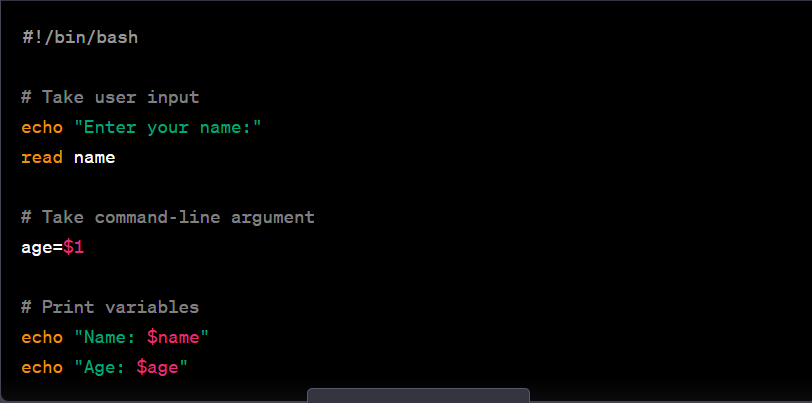
Save the script in a file, let's say userinfo.sh, and make it executable using the command:

Now, when you run the script, it will prompt you to enter your name. After providing the input, it will display the entered name along with the command-line argument, which represents your age.
For example, if you run the script as ./userinfo.sh 25, it will output:

This script demonstrates the capability of shell scripting to interact with users and utilize command-line arguments. You can customize it further to collect additional information or perform specific operations using the provided variables. Shell scripting offers flexibility and empowers you to create dynamic and interactive scripts tailored to your needs. 📥🧾
-> Write an Example of If else in Shell Scripting by comparing 2 numbers 🔄🔢
Here's an example of using if-else statements in shell scripting to compare two numbers:
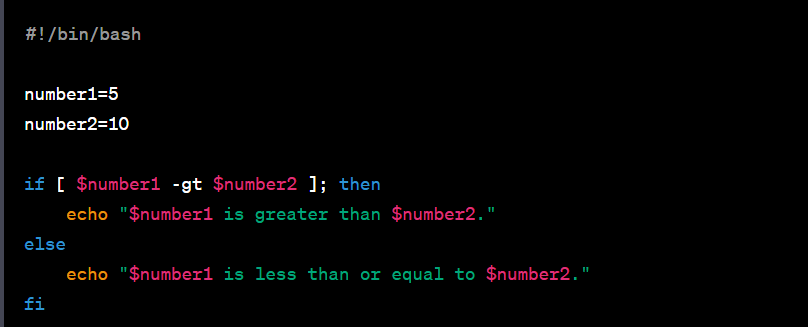
In this script, we have two variables, number1 and number2, with values 5 and 10, respectively. The if-else statement checks if number1 is greater than number2. If the condition is true, it prints the message indicating that number1 is greater. Otherwise, it executes the else block and prints the message stating that number1 is less than or equal to number2.
When you run the script, it will compare the numbers and provide the appropriate output based on the comparison.
Remember, with shell scripting, you can conquer the world of DevOps one line at a time! 💪💻
Happy scripting! ✨🚀


